

TS To USB-C Cable
Use a 1/4 in TS (Tip Sleeve) to USB-C Cable.
Use a 1/4 in TS (Tip Sleeve) to USB-C Cable.

Use a Micro Interface compatible Android Devices.

An external wireless microphone to capture your guitar sound.
There are many options to chose from. Each has very different specs and there trade-offs to consider, such as price, headphones, or extra adapter requirements. So far we have found the best results from the following option, while being affordable and available.
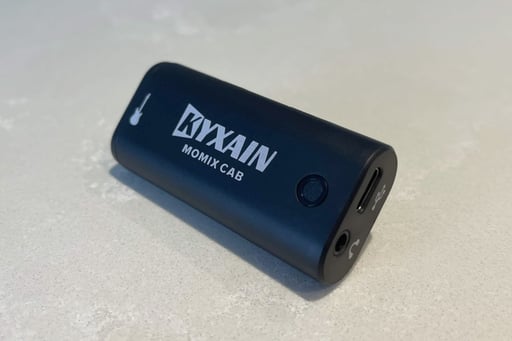
This Micro Interface is a great option if you are on a budget. It's very easy to use, comes with USB-C Cable, and it mixes IMMERROCK + Guitar sound through the headphones.
Be sure to buy the following:
There are many options to chose from. There are 2 great entry level options to chose from
There are many brands to chose from and it involves the least amount of cables. you'll need to change in IMMERROCK's audio settings your Audio Output preference to Headset Speakers from System default.
IMPORTANT. 1/4'' TS to USB-C cables are one-direction only! Read carefully before buying to make sure you get a cable for recording purposes.
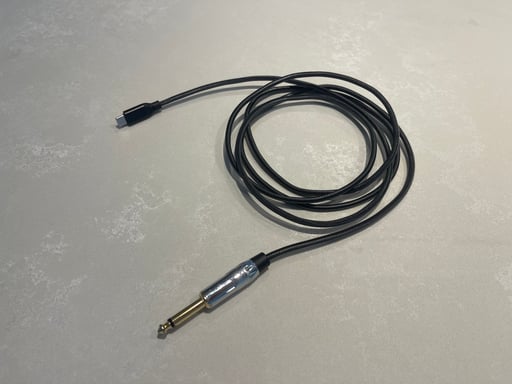
This Micro Interface is a great option if you are on a budget. It's very easy to use, comes with USB-C Cable, and it mixes IMMERROCK + Guitar sound through the headphones.
You'll also need a Standard 1/4 in Guitar Cable.
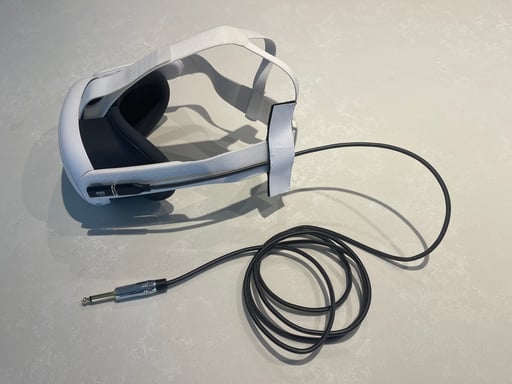
To reduce wear and tear on the USB port from all the weight of the cables, we highly recommend you also obtain a 90-Degree USB-C adapter and use velcro straps or rubber-bands to attach the cable close to the Headset strap.
We have compiled a list of devices that have been confirmed to be compatible with IMMERROCK. It lists the various trade-offs, as well as having links whenever possible to purchase an item.
If you have information to add to the list for a device you tried that is not mentioned, please reach out to evanna@immerrock.com or leave a comment on the Discord Server.

IMPORTANT! Many audio cables are one direction only! Be sure to read the description to make sure you are buying a cable that is Audio To USB-C.
IMPORTANT! The Meta Quest headset microphone will not capture any guitar or bass sound. The Meta Quest headset microphone has a very strong background filter that is not possible to remove.
IMPORTANT. Some cables are incorrectly identified by the Quest OS as an Output Device. You can set your Audio Output preference to Headset Speakers (default is System Default) in IMMERROCK's Audio Settings.
Before you connect your cable or device and launch IMMERROCK, it's important to configure your Meta Quest headset correctly.
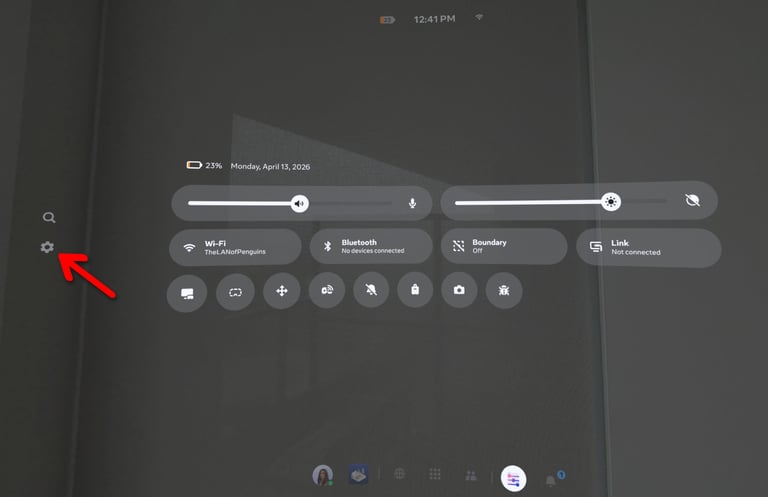
Go to the Meta Quest Settings. You can find it by opening the Quick Settings menu, and then selecting the Gear Icon on the far left side of the screen.
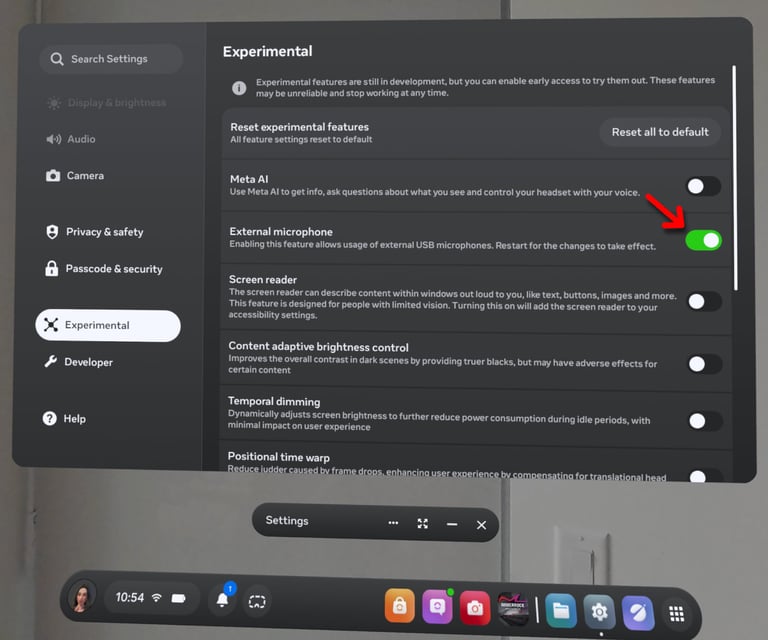
Find the 'Experimental' category on the left side. Then find and enable External Microphone.
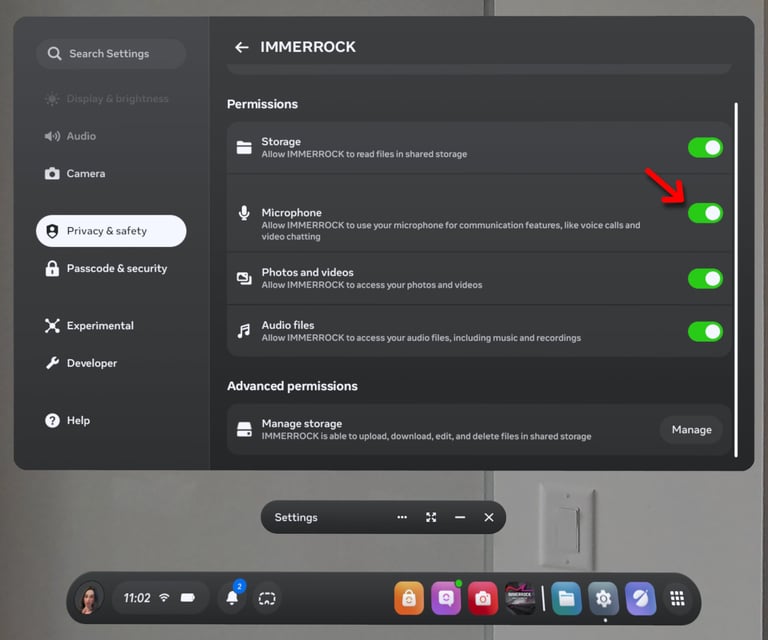
Go to the Meta Quest Settings. On the Left side find the 'Privacy & Safety' category. Then find and select the 'Installed Apps' option. Look for IMMERROCK on the app list and select it. Make sure the 'Microphone' permission is enabled.
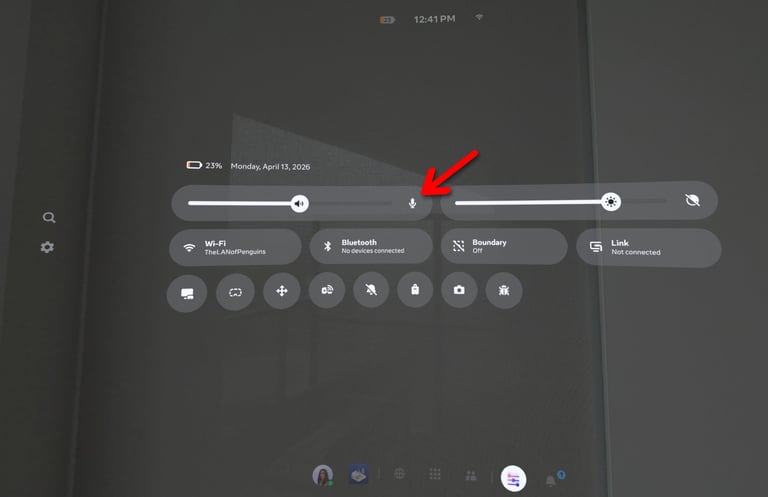
Make sure you haven't muted your microphone, by going to your Meta Quest quick settings.
You may now connect your guitar cable, your micro interface, or your wireless microphone to your Meta Quest headset and to your guitar or bass.
We also highly recommend you use a 90 degree USB-C adapter and a Velcro strap, to reduce tension forces on the Meta Quest connection ports.
![Vid_Tutorial_NoteDete_PlugGuitar.mp4_snapshot_00.08_[2026.04.03_11.21.00]](https://immerrock.com/hs-fs/hubfs/Vid_Tutorial_NoteDete_PlugGuitar.mp4_snapshot_00.08_%5B2026.04.03_11.21.00%5D.png?width=512&height=512&name=Vid_Tutorial_NoteDete_PlugGuitar.mp4_snapshot_00.08_%5B2026.04.03_11.21.00%5D.png)
IMPORTANT. Some cables are incorrectly identified by the Quest OS as an Output Device. You can set your Audio Output preference to Headset Speakers (default is System Default) in IMMERROCK's Audio Settings.
IMPORTANT. Bluetooth devices are NOT recommended as these add extra latency to the audio input and playback.
Double check your Volume knob on your instrument is set to 100%. It's good practice to turn off the volume knob when you stop playing, so it could be that everything is connected properly, but you don't get a guitar signal, because your volume knob is off.
![Vid_Tutorial_NoteDete_GuitarVolumeKnob.mp4_snapshot_00.01_[2026.04.03_11.24.00]](https://immerrock.com/hs-fs/hubfs/Vid_Tutorial_NoteDete_GuitarVolumeKnob.mp4_snapshot_00.01_%5B2026.04.03_11.24.00%5D.png?width=512&height=512&name=Vid_Tutorial_NoteDete_GuitarVolumeKnob.mp4_snapshot_00.01_%5B2026.04.03_11.24.00%5D.png)
You are ready to launch IMMERROCK now.
When you try to Enable Note Detection features, IMMERROCK will open the Calibration menu if you haven't calibrated your cable, device, or wireless microphone before.
Calibration will make sure your guitar or bass signal is loud enough to detect notes properly.
Below is an image of the calibration menu.
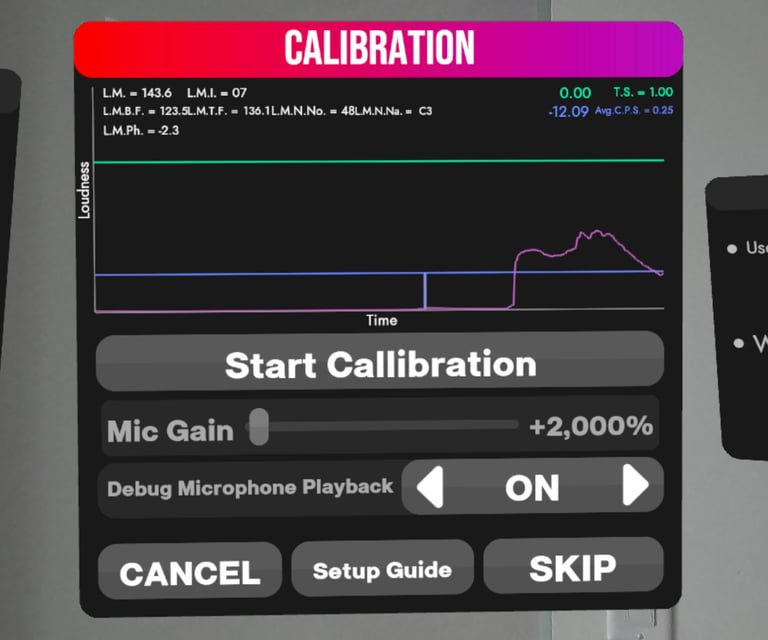
You can divide the Caliibration menu in 3 segments.
The Signal graph
The signal graph displays a graph of the microphone signal IMMERROCK receives from the Headset microphone or the device or cable you plugged in.
You can do a quick voice and guitar/bass strum test, to check that the headset is picking up the proper device.
The Purple Line represents the signal input over time. It's normal for the purple line to not reach the green line.
The blue line represents the average loudness of the signal from the current time until the blue vertical time.
The green line is the Target loudness to reach as you strum when performing a calibration.
If the graph only responds to your voice, then it's picking up the microphone from the headset. Close IMMERROCK. Unplug your cable or device. Restart the headset. Re-plug your cable or device. And launch IMMERROCK again.
If the graph doesn't respond to anything, then go back to the steps to Configure your Headset. Check the easy stuff first. Your volume knob on your guitar/bass. Then that your microphone isn't muted in the quick settings. Then double check your connections. Finally, app permissions, and External microphone permissions.
If the graph responds to your strumming/plucking, then you are one step closer.
Start Calibration Button. After making sure IMMERROCK is picking up your guitar/bass from your cable/device, you can start the calibration process. Simply follow the instructions shown on the app. While you make noise, be sure to strum all the open strings in your guitar/bass, and be as consistent as you can in your loudness.
Mic Gain Setting. Allows you to adjust the Mic Gain IMMERROCK uses to process the signal. Adjusting this setting, will be reflected on the graph purple line. A value of 2,000% should be sufficient for guitar to USB-C cables, such as the Real Tone cable. NOTE, wireless microphone placement has a big impact on the guitar sound detected.
Debug Microphone Playback. Allows you to enable playback audio of the signal IMMERROCK is picking up. NOTE, the playback volume is NOT affected by the Mic Gain setting. NOTE, due to added latency from listening to Playback, Microphone Playback is not available outside of the Calibration setting.
CANCEL. Ends calibration and brings you back to the previous menu.
Setup Guide. Temporarily cancels calibration, and brings up the In-App note detection setup guide.
SKIP. Skips calibration process, while leaving Note Detection enabled, allowing you to proceed forward at your own discretion to the Guitar/Bass tuning.
CONTINUE. Shown after successfully completing the calibration process. Moves you forward to Guitar/Bass tuning.
We understand this is a lot of information. But we are here to help if you have questions, get stuck, or maybe you just wanna chat. We want to make this process easier, so please reach out any time. Join our Discord Server.
Or reach out to me via email to evanna@immerrock.com