Fretboard Visualizer & Audio Improvements - June 26, 2026

IMMERROCK
A new IMMERROCK update is now Available! This update adds the Fretboard Visualizer, a new tool designed to help you understand and learn your fretboard. And huge improvements to the Audio System, making Note Detection easier to set up.
🎸 Fretboard Visualizer
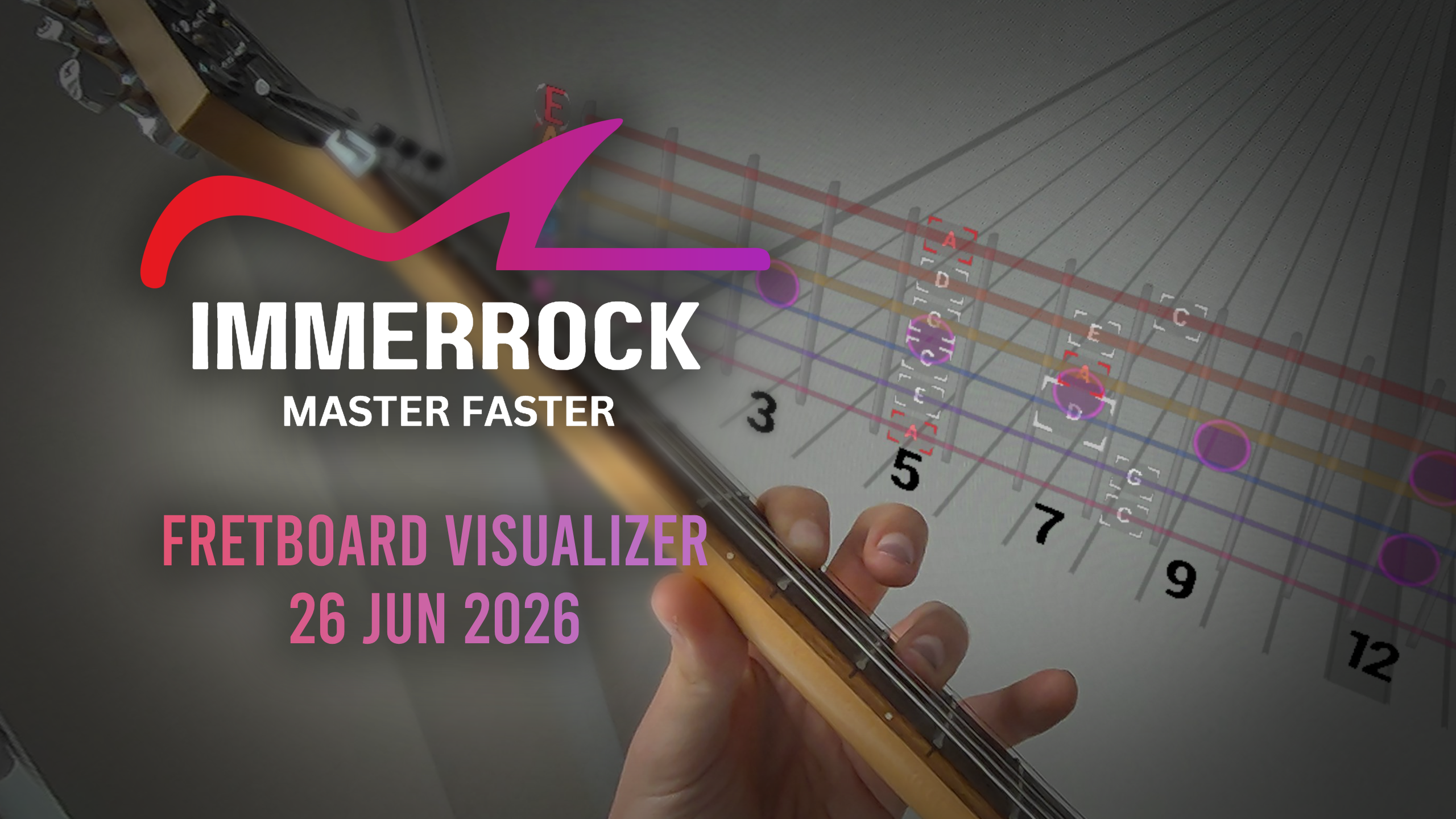
The Fretboard Visualizer is a new powerful tool designed to help you understand and learn your fretboard. Highlight a particular note. Check out triads or scales along the fretboard. And explore all your guitar and bass have to offer. The Fretboard Visualizer is just the foundation of what we are planning to make. Please send your feedback and suggestions to evanna@immerrock.com
🔊 Audio Improvements
We've improved the Audio System for IMMERROCK. You can now see all Input and Output audio devices connected to your Quest headset, making Note Detection Setup and troubleshooting much easier. You no longer need to restart IMMERROCK after connected a new Audio Input device, a simple Note Detection restart will do. And you can now always have IMMERROCK audio sent to the Headset Speakers, making cheap guitar to usb-c cables our new recommended option!
IMPORTANT! Many 1/4 in TS to USB-C cables are One-Way, be sure to read the specs of the cable you are buying carefully.
🎙️ Easier Note Detection
We've updated the Setup Guide with many checks to truly guide your through the Note Detection setup, in order to ensure your Headset is configured properly. We also added various Note Detection Warnings in various places, in case you forgot to plug in your guitar cable, or accidentally muted your microphone in the Quest settings.
We also have brought many quality of life improvements.
📝 Full Patch Notes — 0.12.0.750
-
Added the 'Fretboard Visualizer'
-
The Fretboard Visualizer is a new system that allows you to add 'ghosts' to the fretboard allowing you to visualize individual notes, triads, or scales.
-
It works by adding 'Rules' to the visualizer, allowing you to include or exclude note groupings.
-
You can enable note names during the visualization.
-
You can select between 3 positions, Full Length, Limited to a range, or Dynamic (Moves with the note 'Highway').
-
If using Note Detection, the visualizer will highlight the note you play.
-
If using Note Detection, you can toggle to highlight mistakes.
-
-
Added a Fretboard Visualizer button to Song Play menu.
-
Added a Fretboard Visualizer button to Song Adjustment menu.
-
Added a Fretboard Visualizer button to Metronome menu.
-
Added a new Audio Setting option to view and select a new Audio Output Device.
-
Added a new Audio Setting option to view a list of connected Audio Input Devices.
-
Audio Input Device is selected automatically by the Quest OS, with preference given to a device connected using the USB-C port.
-
-
Restarting IMMERROCK after connecting a new Audio Input device (For example, a USB-C guitar cable) is no longer necessary.
-
Added a new Audio Setting option to change your Preference Audio Output Device. (Select between 'System Default'[default option] and 'Headset Speakers').
-
Adjusted organization of Audio settings elements.
-
Adjusted organization of Fretboard Settings elements.
-
Increased Fretboard Micro Adjustment Menu auto-hide time to 10 seconds from 5 seconds.
-
Added new setting to Fretboard Micro Adjustment menu to toggle Auto-Hide on or off. On selected by default.
-
Added a new Headset Battery indicator to the User Profile menu.
-
Added Note Detection Error messages.
-
Note Detection Error Messages allow you to identify if you have missed a step that would prevent you from using note Detection.
-
-
The possible Note Detection Error Messages are:
-
IMMERROCK is currently using the Quest Built-In Microphone.
-
IMMERROCK lacks Microphone Permissions.
-
Microphone is muted in the Quest Settings.
-
-
Note Detection Error Messages show up in the following menus:
-
Guitar Cable Calibration menu (Also displays current Audio Output device and current Audio Input device).
-
Note Detection Navigation menu.
-
Added a new Note Detection Warning menu during Guitar/Bass tuning. If no errors are detected, the menu auto destroys itself.
-
-
Updated simple Note Detection Requirement Menu (shown while hovering YES on Use Note Detection menu during launch).
-
It lists the recommended items: 1/4 in TS to USB-C guitar cable, a Guitar Audio Micro Interface, and a Wireless Microphone.
-
-
Updated the Note Detection Setup Guide.
-
Added a link in all pages to the Note Detection section on the website.
-
Fixed cases where Setup Guide would send you to deprecated Sound Check menu.
-
-
Updated Note Detection Requirements page with the recommended type of devices.
-
Updated Enable External Microphone page.
-
Added a clear visual warning to indicate it requires a Full Quest Headset restart to take effect.
-
Simplified Text.
-
-
Updated Plug Your Guitar Cable page.
-
Added a check for USB devices.
-
Simplified text.
-
-
Removed Plug Your Headphones page.
-
Headphones are no longer necessary for Note Detection.
-
-
Added Audio Output Preference page.
-
You can select your preferred audio output device between 'System Default' or 'Headset Speakers'.
-
Displays the current Audio Output device.
-
-
Updated Give Microphone Permission page.
-
Updated Visual check for Microphone Permission.
-
Page no longer skips if permission is already granted.
-
Simplified Text.
-
-
Updated Unmute Microphone page.
-
Added a check for Muted Microphone.
-
Added a button to recheck for Muted Microphone.
-
Simplified Text.
-
-
Added a Restart Microphone button to the Guitar Cable Calibration menu.